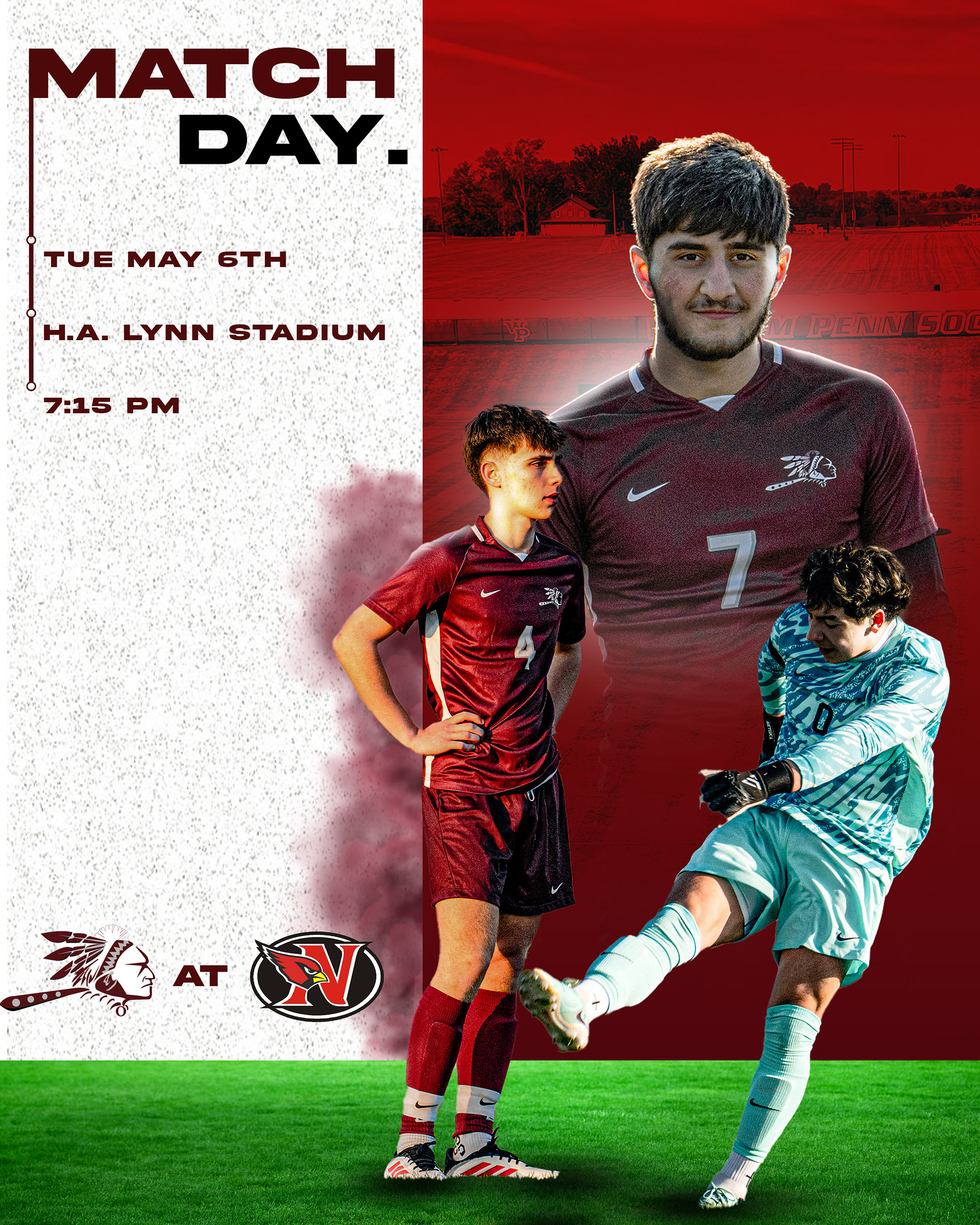
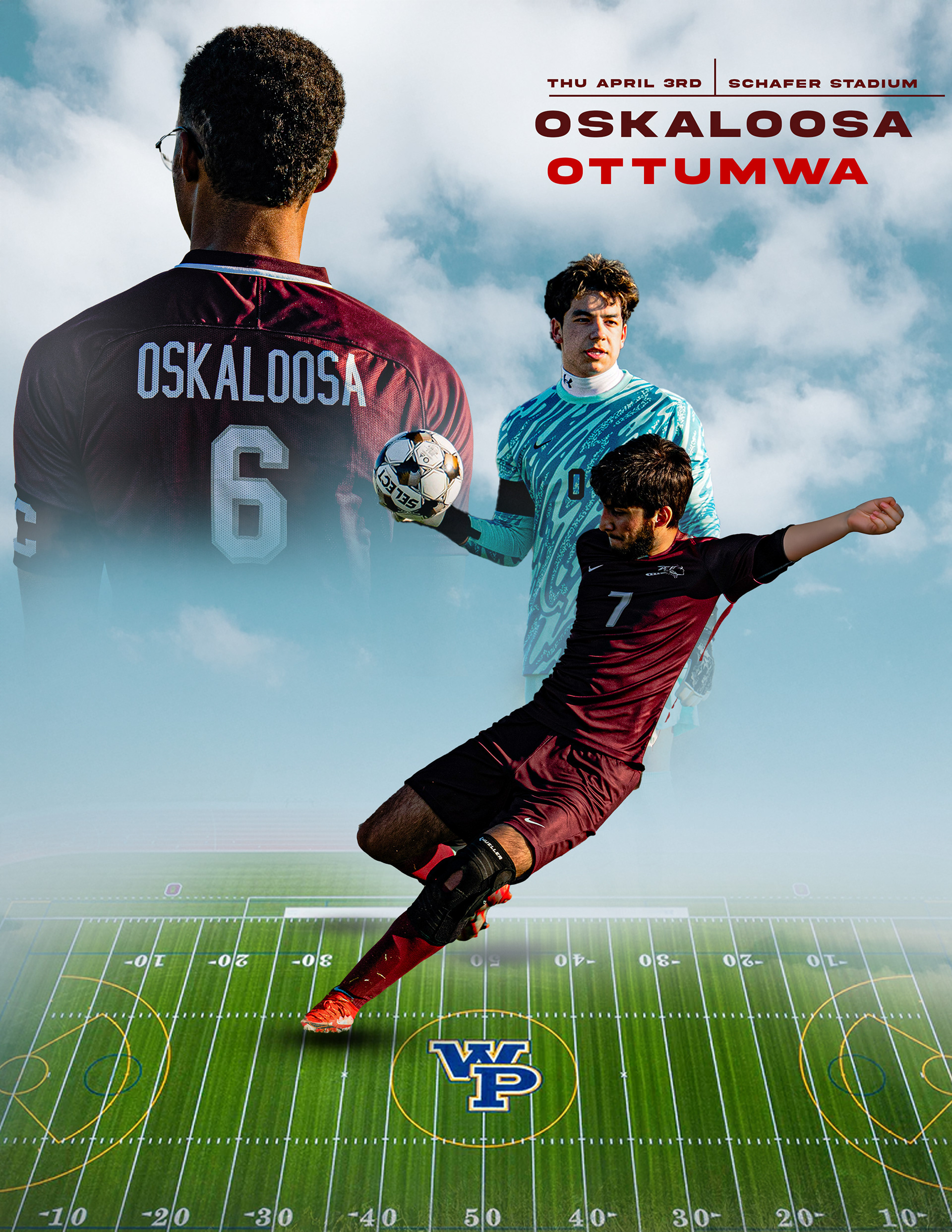
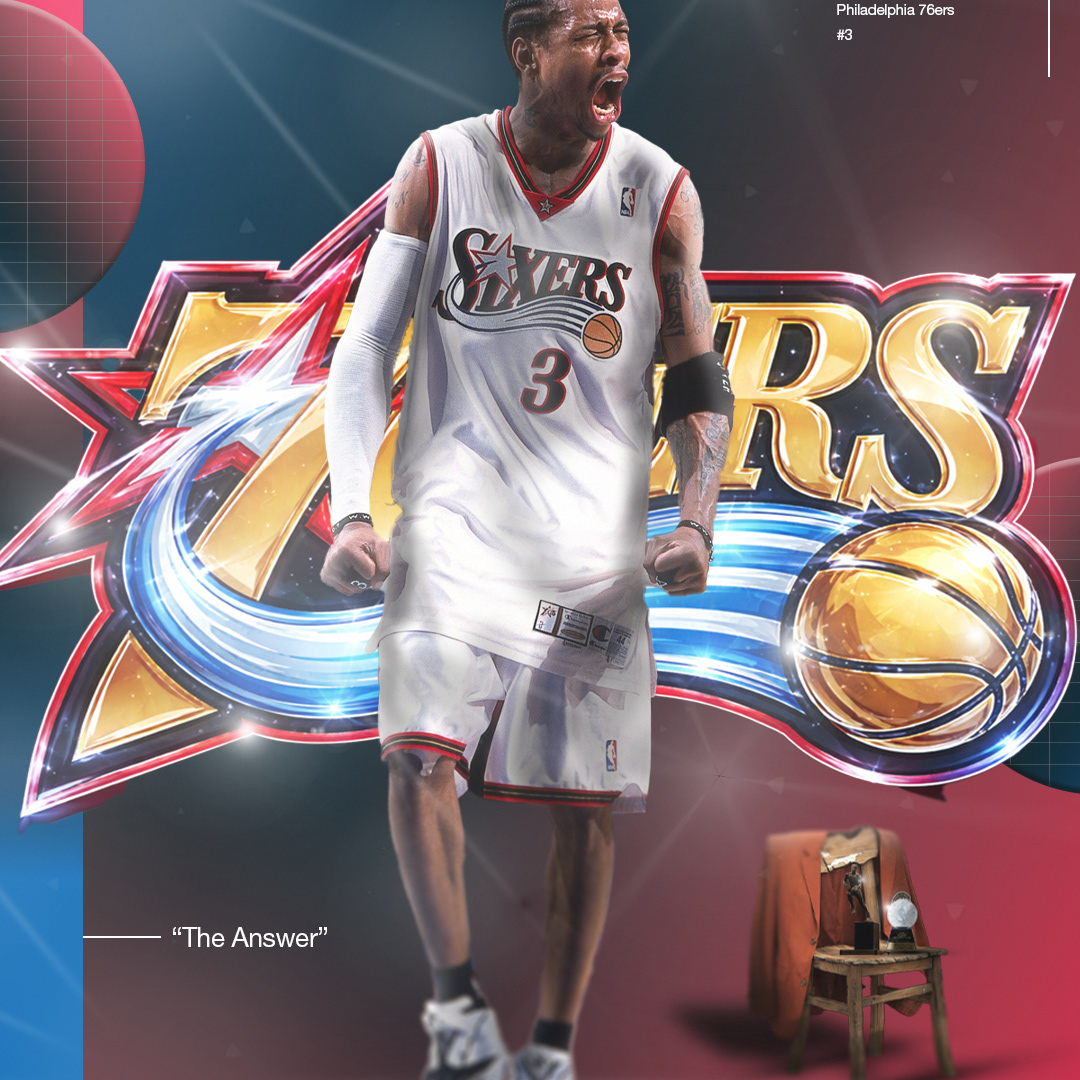
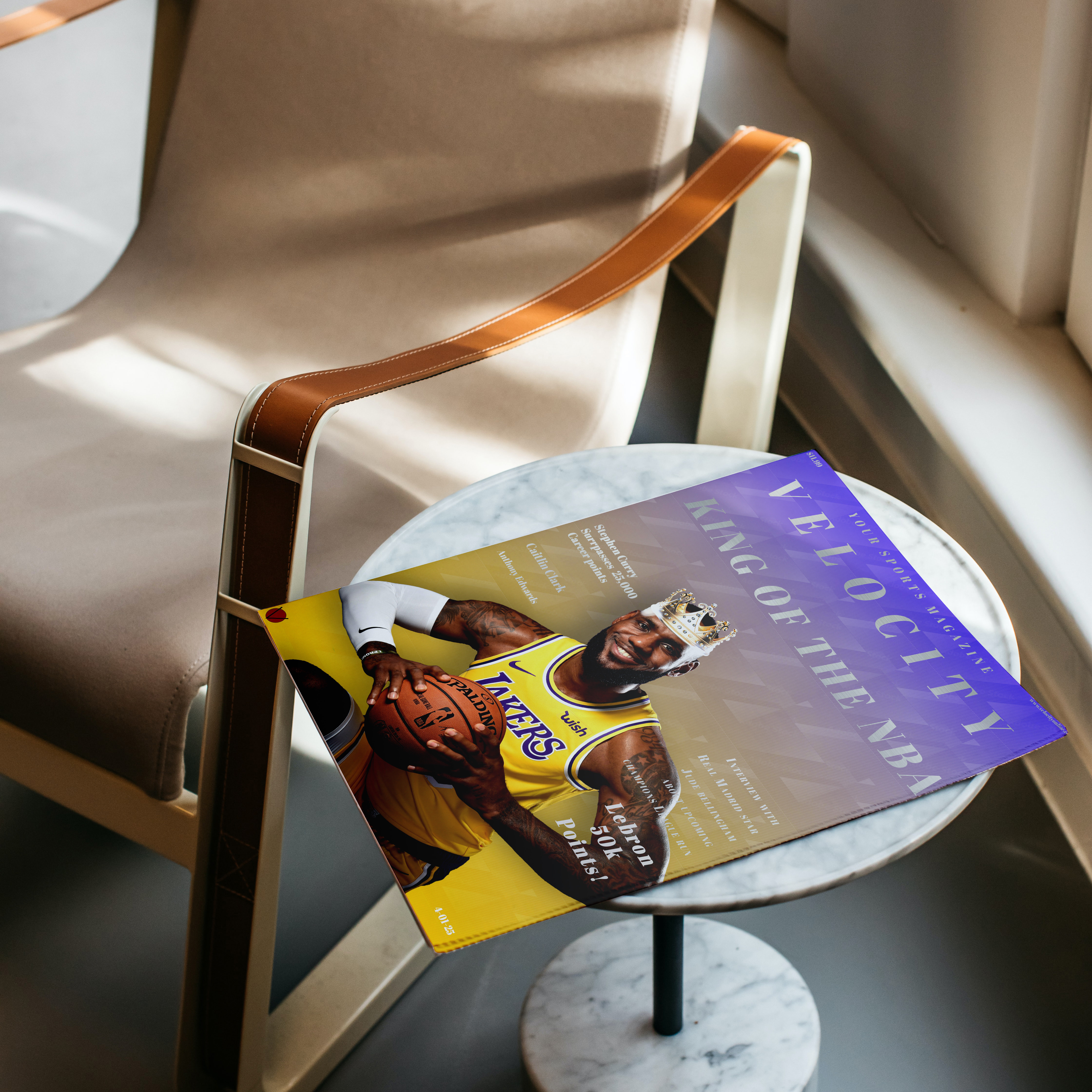
I made this graphic for a Week 2 matchup. I used Photoshop and mainly used tools like the gradient tool for the fade and the perspective tool for the text and the field.
I used Photoshop to create this. I utilized tools like clipping maks and layering.
I used Photoshop to create this. I utilized tools like clipping maks, blending modes, and the shape tool.
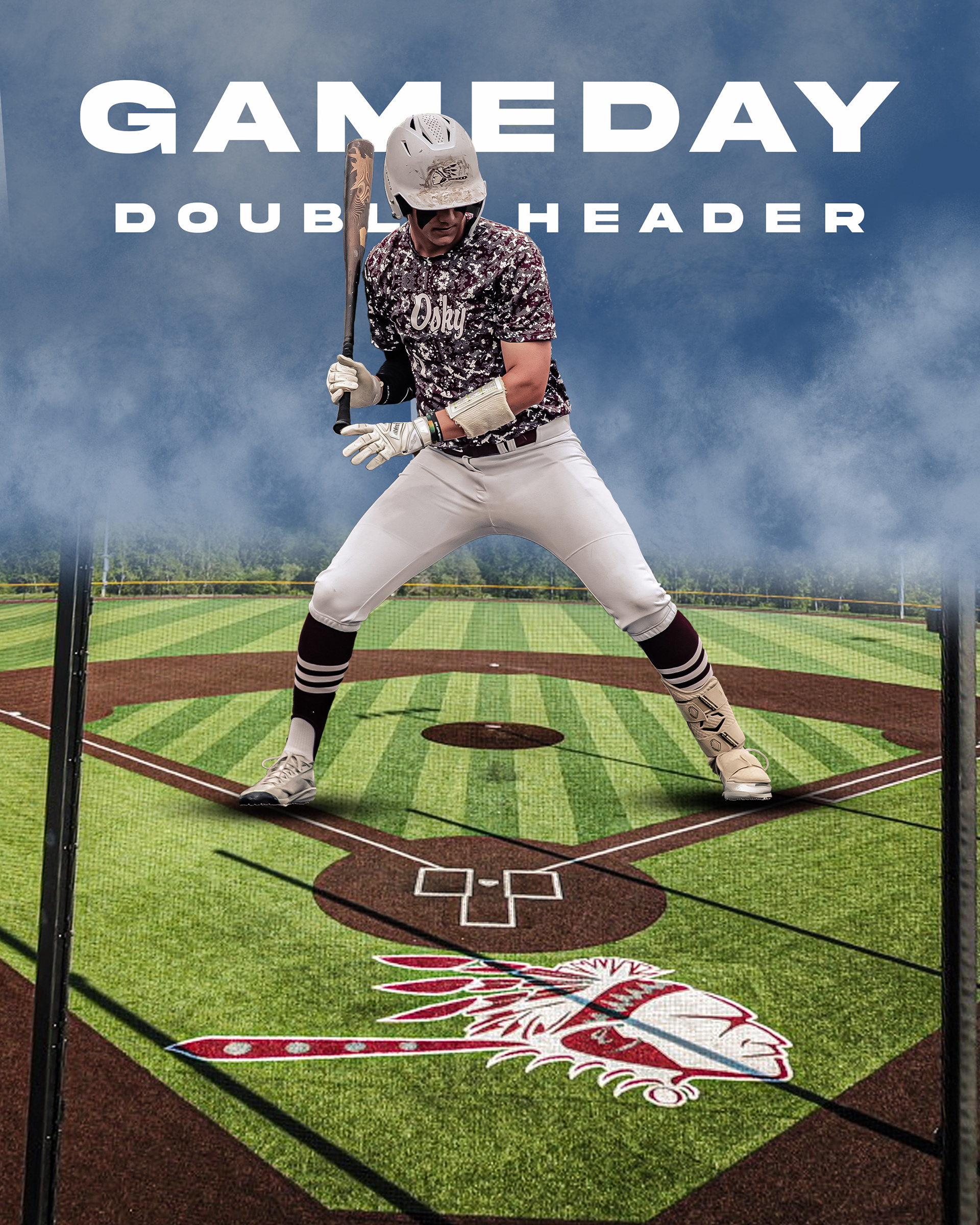
I used Photoshop to create this. I utilized tools like the perspective tool on the field, the paint brush for the clouds, and layering.
I used Photoshop to create this. I used a lot of blending modes and texture overlays.
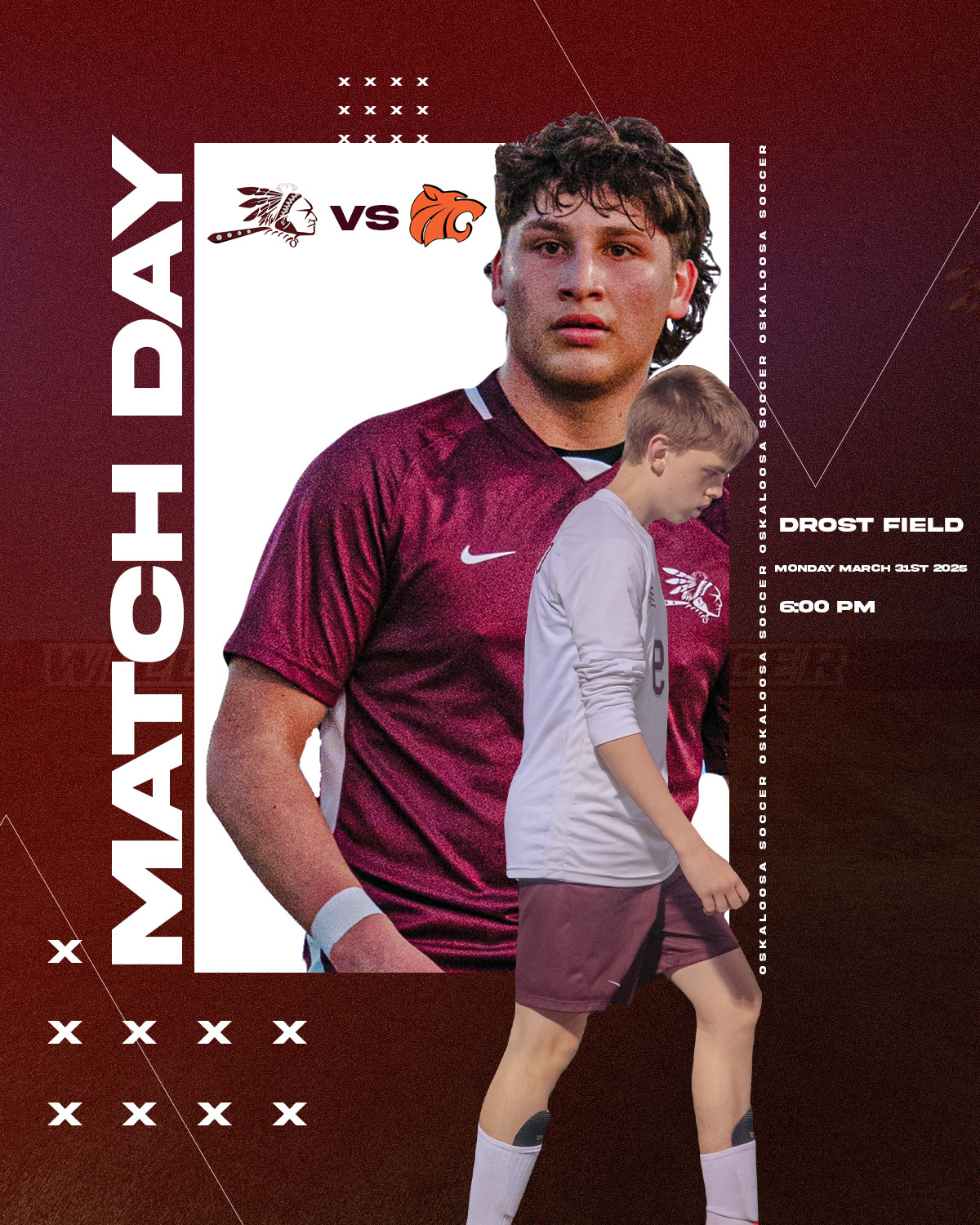
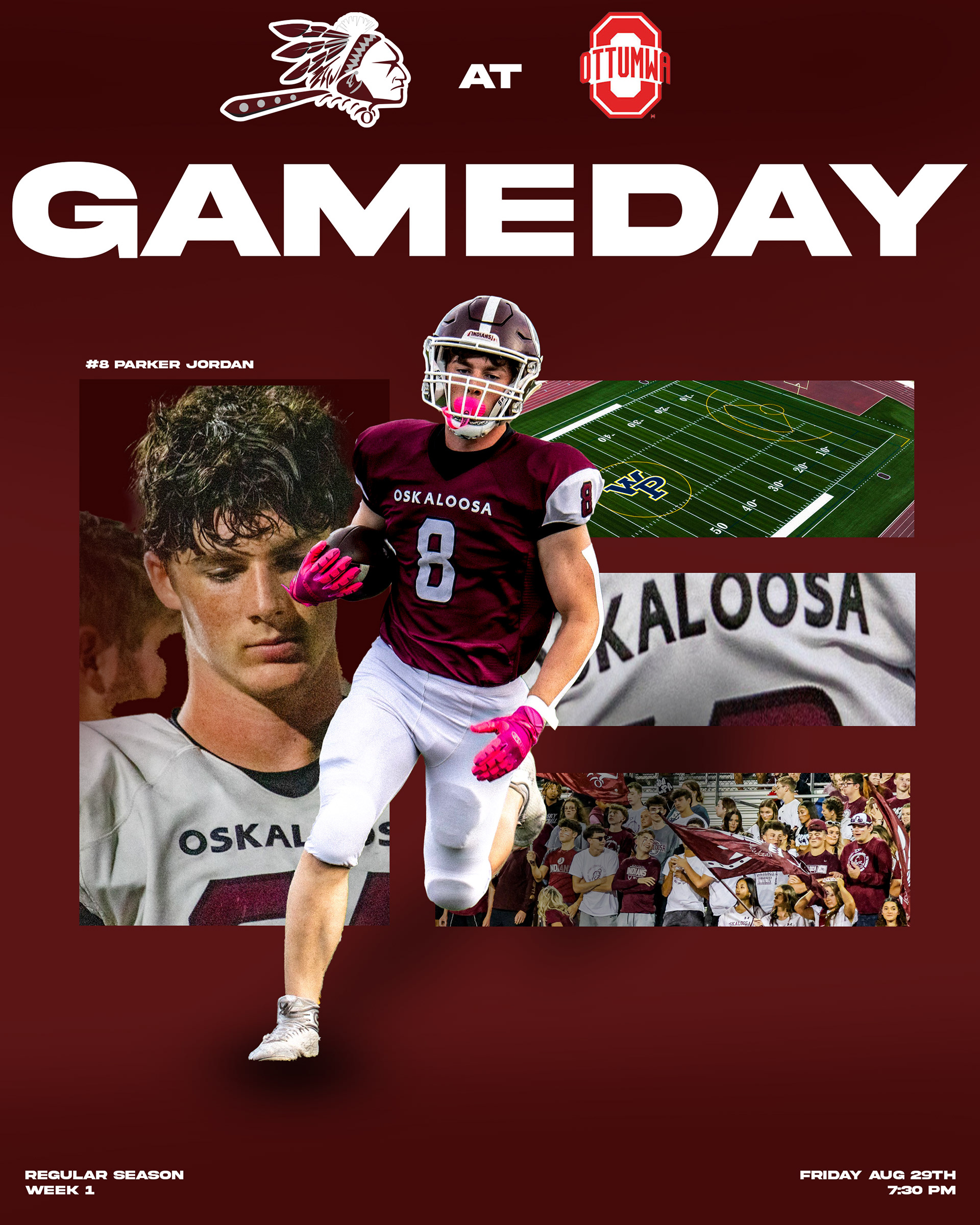
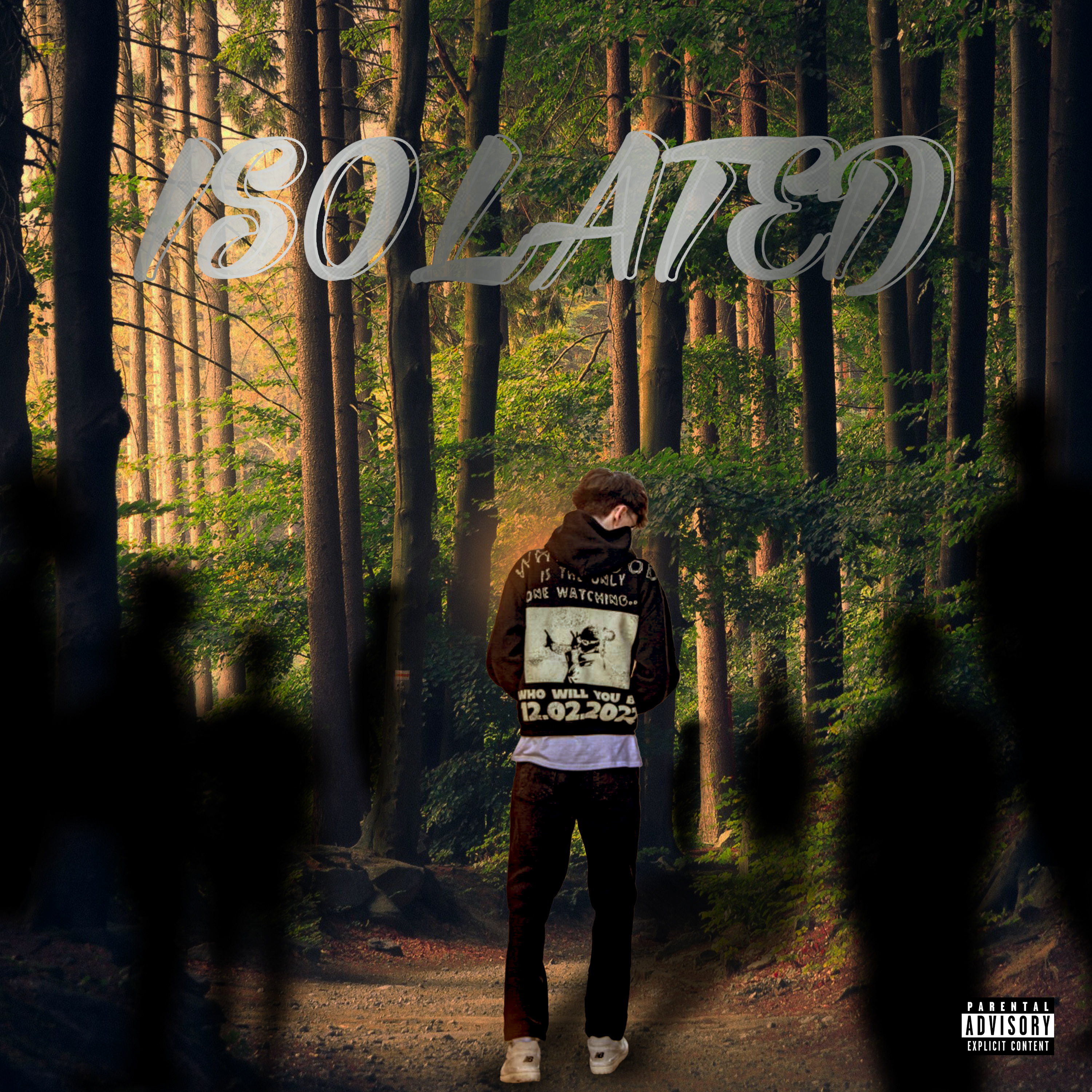
I used Photoshop to create this. I utilized tools like the noise effect, and the layering ordering
I used Photoshop to create this. I utilized tools like the blending modes on the colored rectangle, paint brushes for the glowing effect, and cropping on the grass.
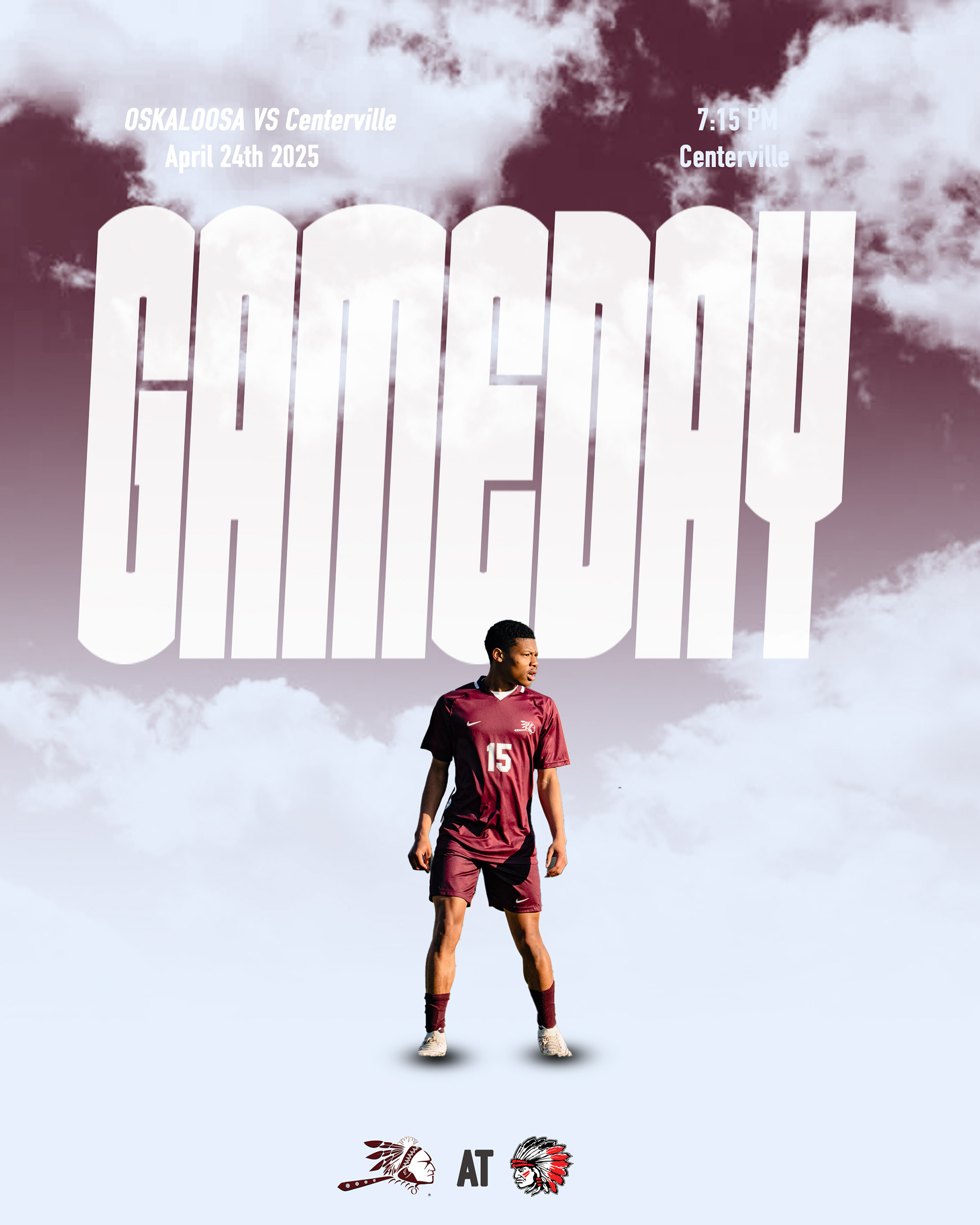
I used Photoshop to create this. I used tools such as the graident tool to create the fade, the paint brush for the clouds and shadows.
I used Photoshop to create this. I utilized tools like blending modes, bevel and emboss on the text, and different texture overlays.
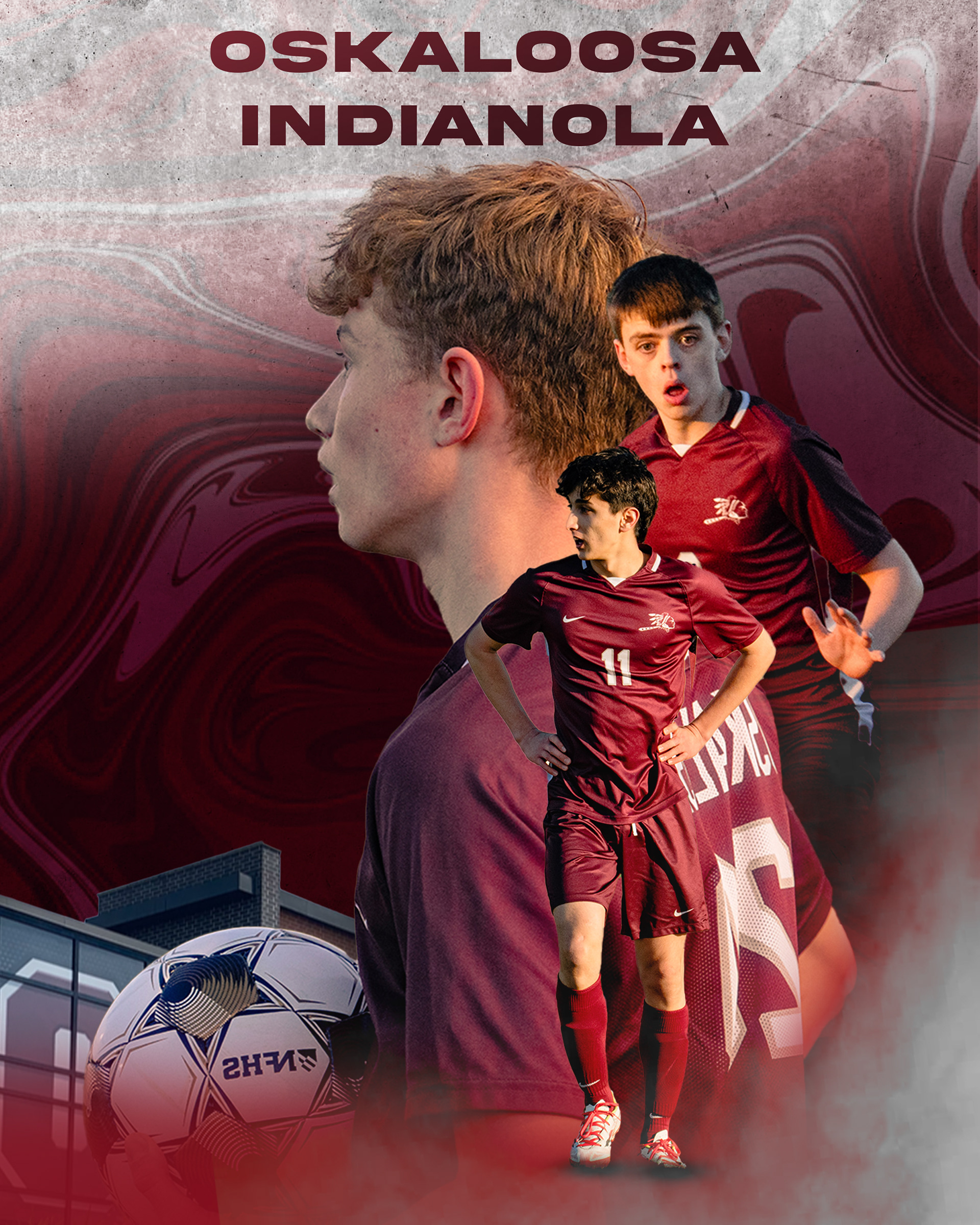
I used Photoshop to create this. I utilized tools such as the clipping masks, two different color fill for the background, and would erase some of the lighter color on the bottom, and to create the shadow, I duplicated the player picture and turned the hue down to black, turned the opacity to about 40%, and used gausian blur.
I used Photoshop to create this. I used tools such as the paint brush for the shadow, different layers, and blending modes.
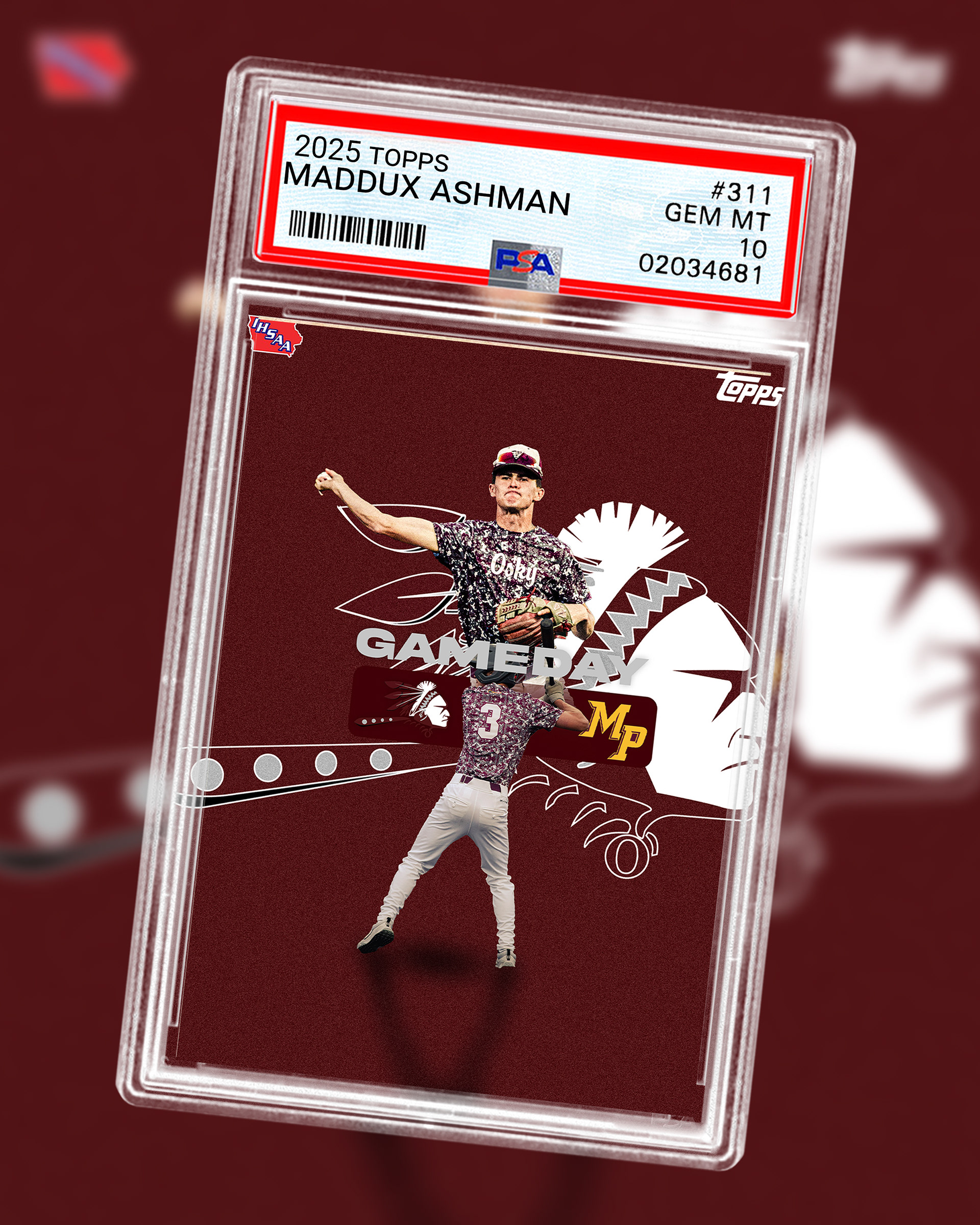
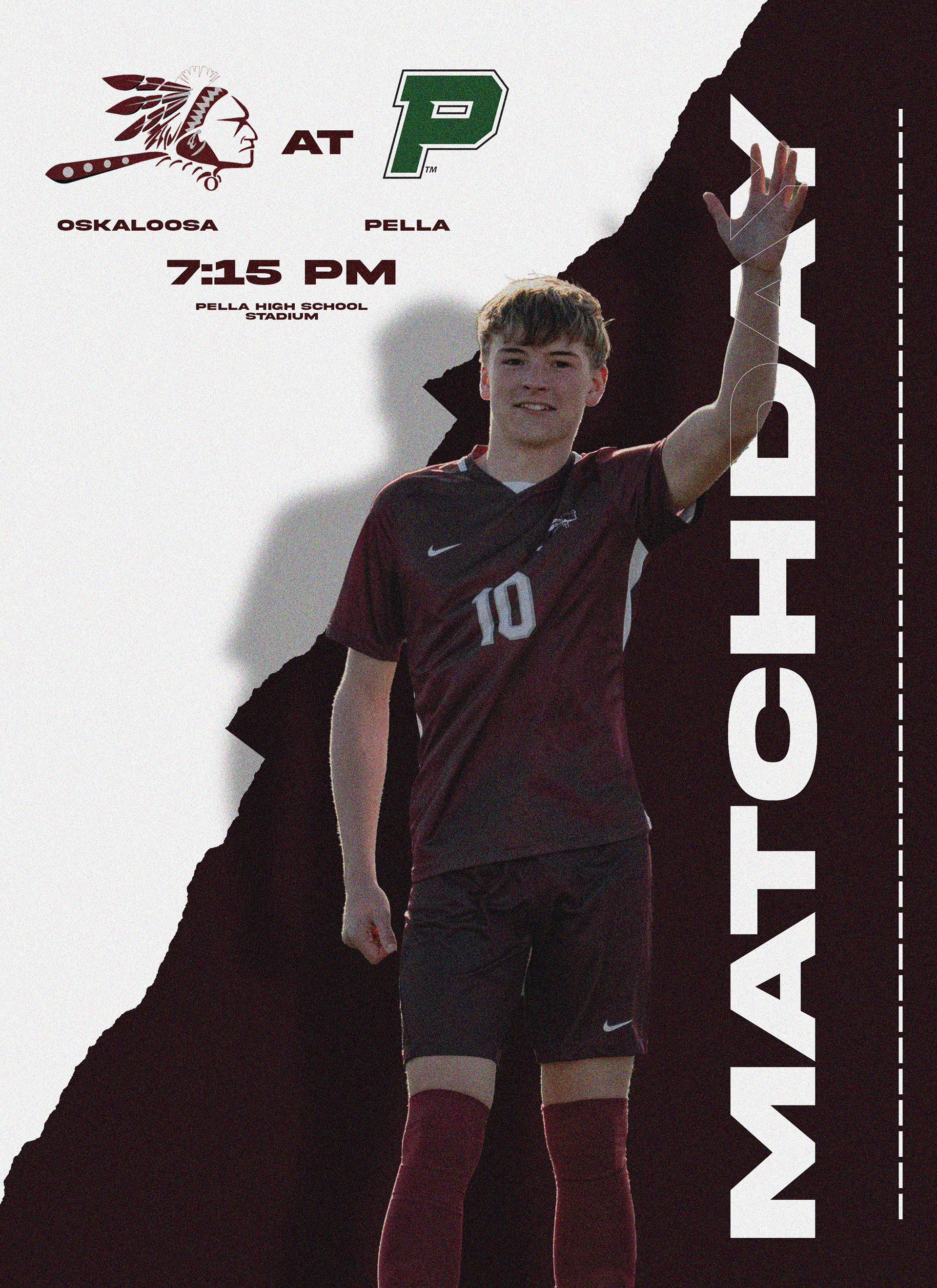
I used Photoshop to create this. I utilized tools like the noise effect, and the layering ordering. I also used the stroke effect in order to get the players arm through the text.
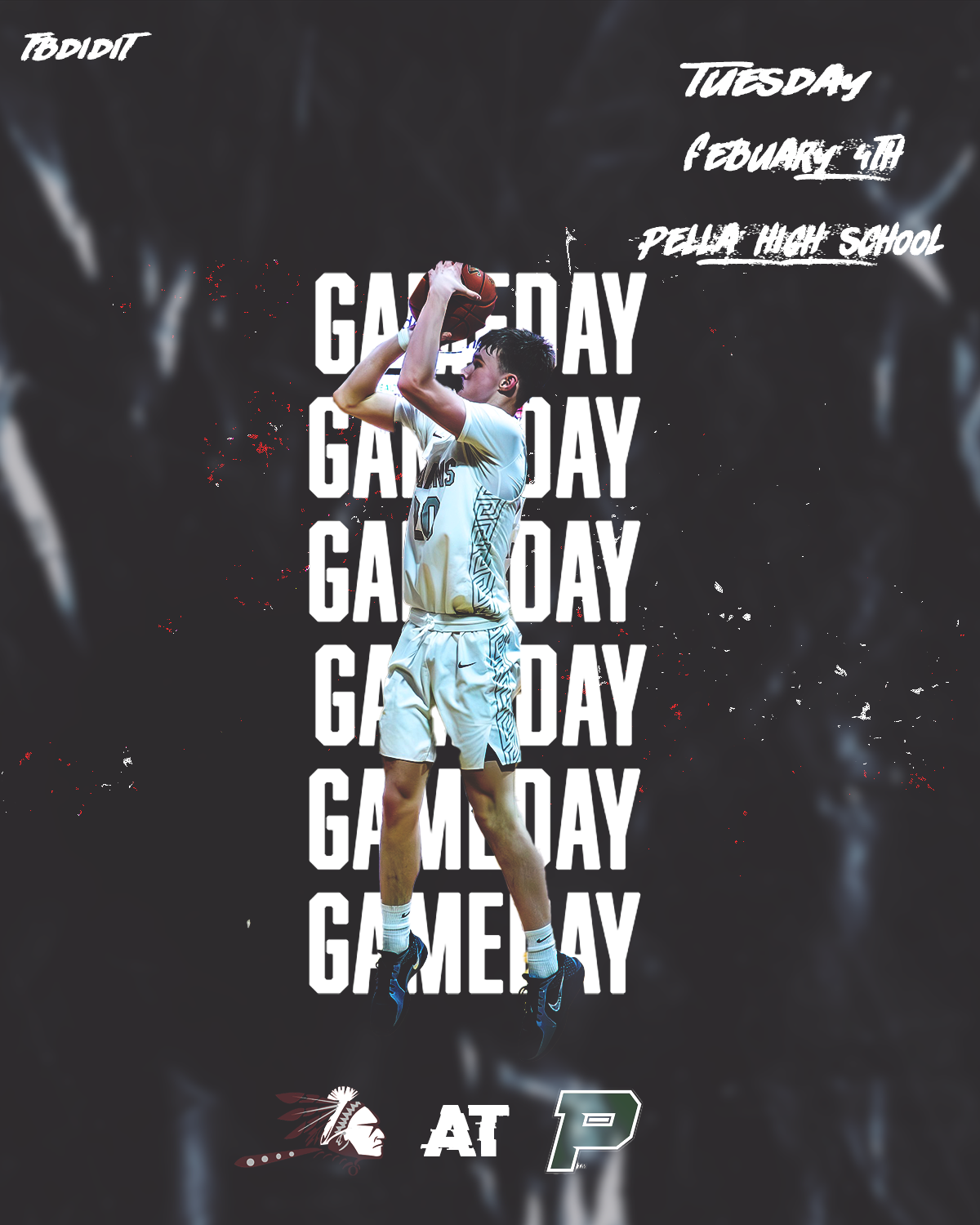
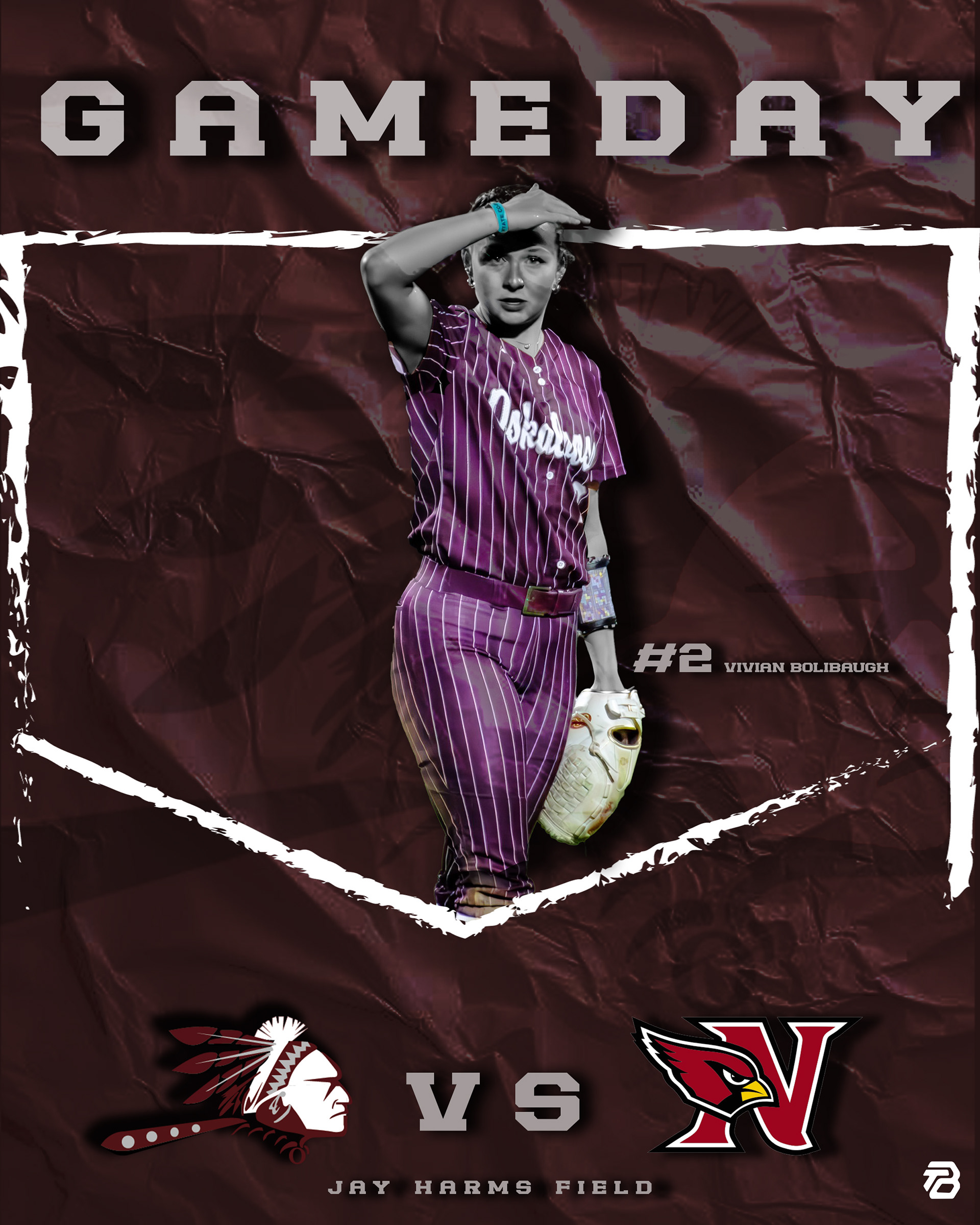
I used Photoshop to create this. I utilized tools like the black and white filter, blending modes with different texture overlays, and the drop shadow tool.
I used Photoshop to create this. To create the funky background, I created a text box consisting of "GAMEDAY" and used the warp tool to swirl it and completely disort it.